
Login to 'my conference tool' or 'tekom live' on the conference page. The single sign-on allows you to switch between 'my conference tool' and 'tekom live'.
Recommendation: Login first on the day of the conference, then you can switch between the conference and exhibition areas as you wish without logging in again and you can network undisturbed.
'tekom live', 'my conference tool' and the conference website are linked together. Single sign-on allows you to switch from one area to another without barriers.
'tekom live' is the virtual conference and exhibition platform.
From the entrance hall you enter the conference, the showrooms, Café tekom and the tekom NetworkingLounge. 'tekom live' is open during the conference. The showrooms are staffed during this time. After the conference, you can still download documents and view recorded exhibitors presentations in the showrooms.
'my conference tool' – Internal Area of the Conference Website
'my conference tool' is the internal area of the conference website; login is required. On the page 'my conference tool' you will find your personal conference program, as a speaker your submitted contributions, and as an exhibitor further functions.
Conference Website – Information, Conference Program, Recordings
This is the official conference page for the conference. You will find all information about the conference here. The conference page also contains the conference program and here you can find the recordings after the conference.
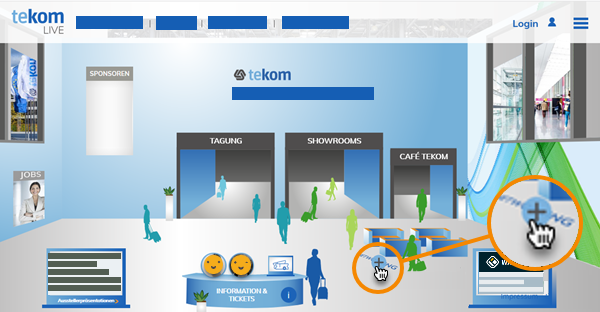
Move the mouse to an area until you see a plus symbol and click on it. No matter where you are on the conference website, in 'my conference tool' or in 'tekom live', with a click on Entrance Hall you are back at the starting point and can switch to the areas from here.
You will find the access links to the individual presentations in your personal conference program. Log in with your access data in 'my conference tool'. There, you can see the current events in 'my conference program'. The access links are available 5 minutes before the start of the presentation.
The link to the single presentation is visible 10 minutes before the start.
With Seat Reservation
In your personal conference program, you will see the individual event in the "In Progress" area. Click on the camera icon to enter the virtual room.
Without Seat Reservation
If you would like to enter a single presentation spontaneously, display the conference program for this purpose. Here, too, the links are displayed 10 minutes before the start of the event on the detail page of the single presentation.
Tipp: Click on the filter LIVE or Shortly. Select the single event; you will see the function Reserve Seat or Enter Virtual Room on the detail page. Click on the function; you will be redirected to the virtual room if there is still a seat available.