
FAQs - GoToMeeting
The current system requirements can be found on the manufacturer's page.
View system requirements
Perform a system check for GoToMeeting
No, you can launch GoToMeeting as a web application. GoToMeeting will then be displayed in your browser.
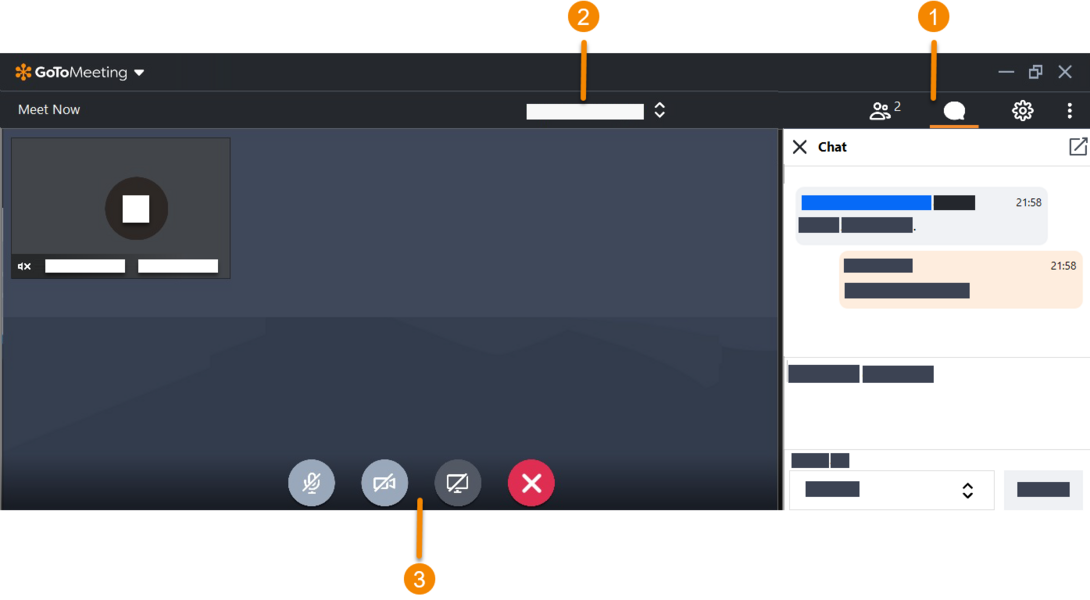
- In GoToMeeting, the control panel is important. There you can change your audio settings, view the chat or view the participants list.
- At the top center, you can set how you want the webcams to be displayed. If you split your screen, you will also find the drawing tools there.
- At the bottom of the interface, you can show the most important functions with the mouse. Turn the microphone and webcam on and off and start the screen transmission as a moderator.
There is no icon for this in GoToMeeting. At the beginning you agree on the communication rules with the moderator. This is what defines how you can communicate.
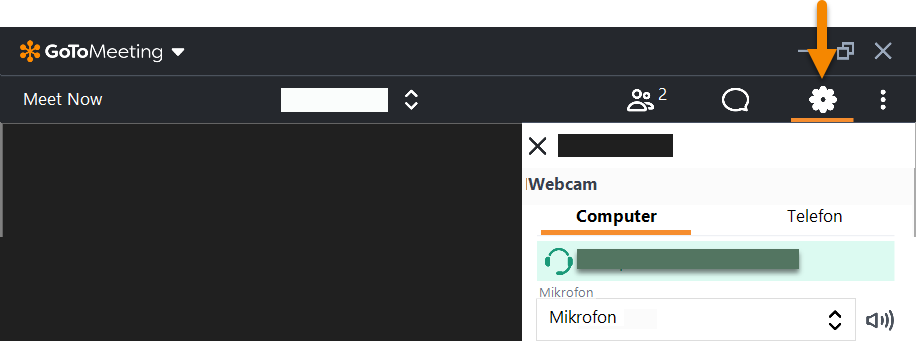
Select the "Setting" icon. In the settings you will see the pull-down menu for microphones. There, you can select a different microphone.
Select the "Setting" icon. In the settings you will see the pull-down menu for microphones. There, you can select a different webcam.
Select the chat icon. In the pull-down menu "To", set the person and then click Send. Only this person will receive the chat message.
Important: If you want to send a message to all participants again, you have to set "All" again.
Select the chat icon. The default is always to "All". Your chat message will be sent to all participants. If you have previously had a private chat, set "To" to "All" again in the pull-down menu.
Yes, you can share your screen with other participants. You can show a whole screen or a single application.
As a moderator
If you are a moderator, you can see the function by moving the cursor to the bottom of the screen. If you click on the screen icon, the dialog opens.
As a participant
The organizer or presenter appoints you as a presenter and sends you a request. You can then share your screen.